
Restore files from the Recycle Bin (not emptied)
- Double-click the Recycle Bin on the desktop.
- Find the file. The Original Location column shows where it was; Date Deleted helps with sorting.
- Right-click → Restore. The file goes back to its original folder.
Select several files with Ctrl held down, or use Restore all items to bring everything back.
If the Recycle Bin icon is missing from the desktop, turn it on under Settings → Personalization → Themes → Desktop icon settings, or type shell:RecycleBinFolder into File Explorer's address bar.
Recycle Bin emptied: what just happened
Emptying the Recycle Bin doesn't erase the data; Windows only frees the space. Until new files take that space, the content is still on the drive; that's true for any deleted file, see recover deleted files. So, right away:
- Save as little as possible to the drive the files were on.
- Save recovered files to a different drive, such as a USB stick.
One detail makes the search harder: inside the Recycle Bin every file gets a stand-in name like $R4X2KQ1.jpg. Its real name and folder are kept in a small companion file ($I…). That's why many recovery tools only show cryptic names.
Recover an emptied Recycle Bin with DiskDetox
DiskDetox reads those companion records and lists files from the emptied Recycle Bin under their real names and in their original folders, whole deleted folders included. If the origin can't be determined any more, they go into a separate group, “Recycle Bin (emptied, original folder unknown)”.
- Open DiskDetox and choose Recover files.
- Pick the drive the files were on, usually Windows (C:).
- Run a Quick scan.
- Search for the file name or filter by type and date.
- Check the preview, tick the files and save them to a different drive.
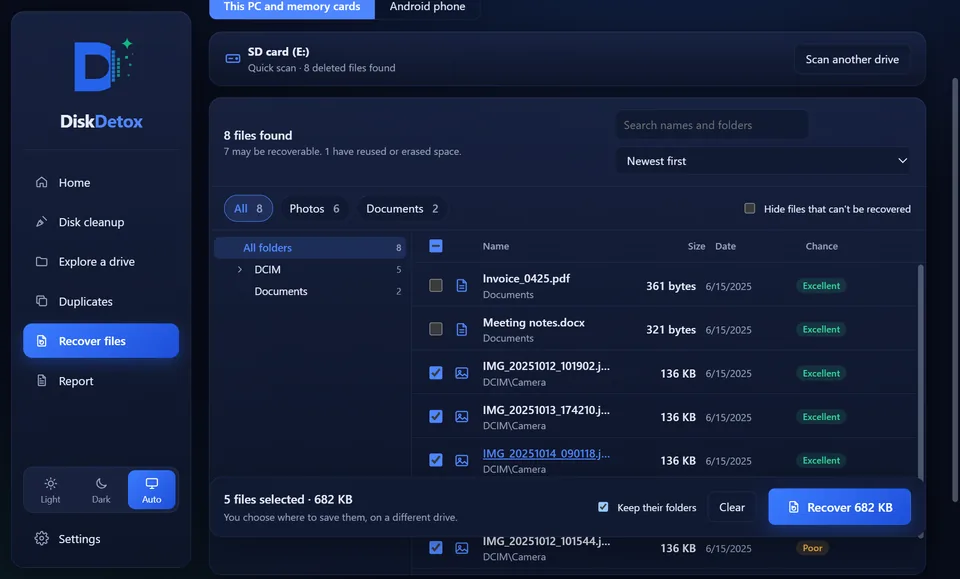
Search the emptied Recycle BinA quick scan of drive C, with a preview before you save.
What are the chances?
On a hard disk (HDD) the odds are good if little has been written since. Internal SSDs often wipe freed areas soon after with TRIM; DiskDetox shows those files as “Lost”. USB sticks and memory cards usually have no Recycle Bin, so files are deleted right away, but they can often be recovered well: see SD card recovery. Photos from a phone are covered in recover deleted photos.
How to avoid losing files next time
- Turn on File History (Control Panel → File History) and back up to an external drive.
- Turn on OneDrive folder backup for Desktop, Documents and Pictures. Deleted files then also sit in the OneDrive recycle bin.
- Set Storage Sense so it doesn't empty the Recycle Bin too early: Settings → System → Storage → Storage Sense.
Frequently asked questions
Can you undo emptying the Recycle Bin?
Not with one click; Windows has no such feature. But the files can usually be recovered with a recovery tool as long as their space hasn't been overwritten.
How long do files stay in the Recycle Bin?
Until you empty it or it reaches its maximum size. With Storage Sense on, Windows can remove files automatically after a set number of days.