
Method 1: storage usage in Settings
Settings → System → Storage shows how drive C splits into categories: apps, temporary files, documents, pictures, videos and system files. Click a category to dig in. For other drives: Advanced storage settings → Storage used on other drives (Microsoft's guide).
That's a good overview, but it doesn't tell you which folder grew.
Method 2: search by size in File Explorer
- Open File Explorer and select the drive or folder.
- Click the search box at the top right. The search options let you filter by size, for example files over 1 GB.
- Sort the results by Size in Details view.
Searching can take a while on big drives and only shows individual files, not folder totals.
Method 3: show folder size
File Explorer's Size column only shows files, not folders. To see a folder's size, right-click it → Properties. That's tedious for many folders, so a tool that measures every folder at once is worth it.
Find large files with DiskDetox
Explore a drive measures every folder on a drive and shows the result three ways:
- The This folder tab shows an interactive map (treemap): the bigger the tile, the more space the folder uses. Click to open it.
- Largest files lists the biggest files on the drive or in the folder.
- File types splits the space by type, such as videos, photos, archives and disk images.
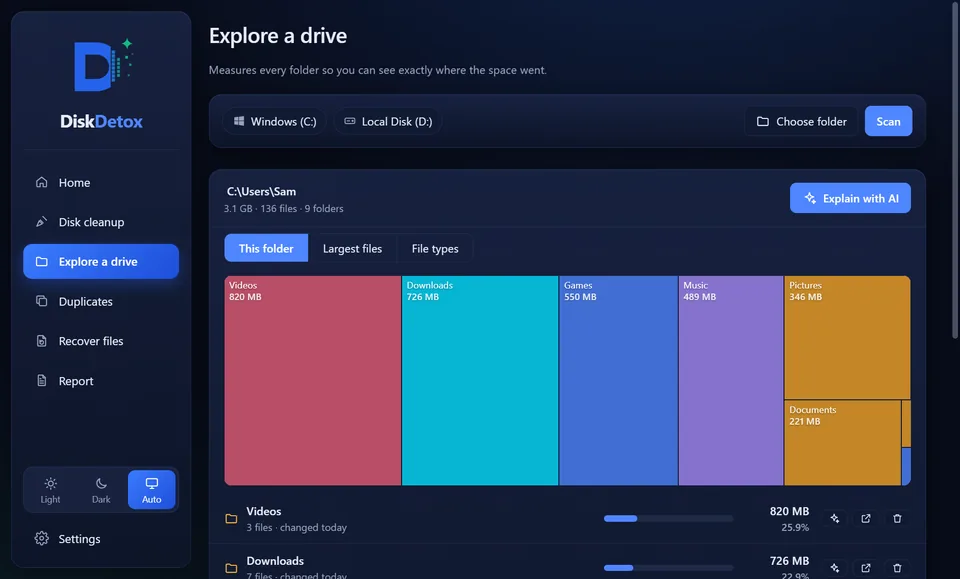
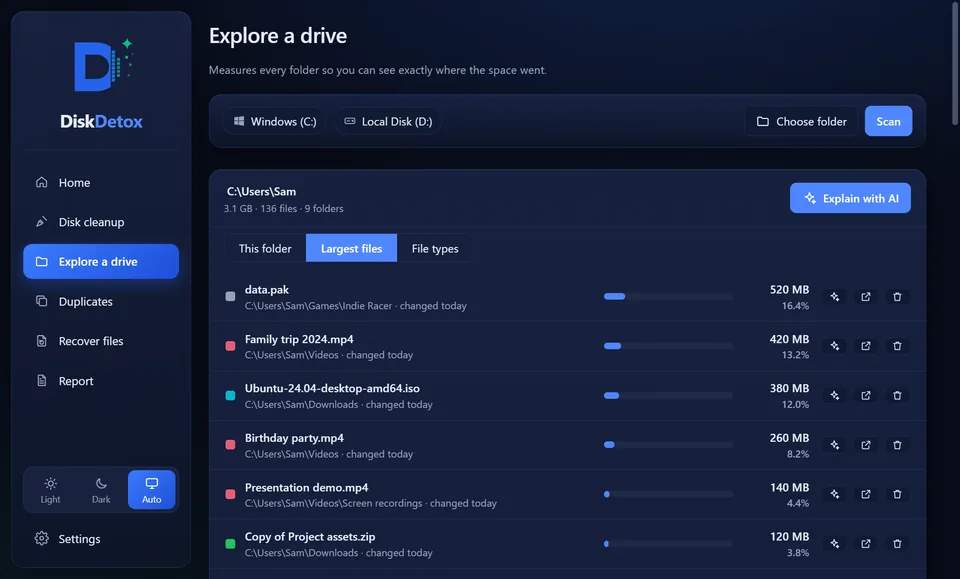
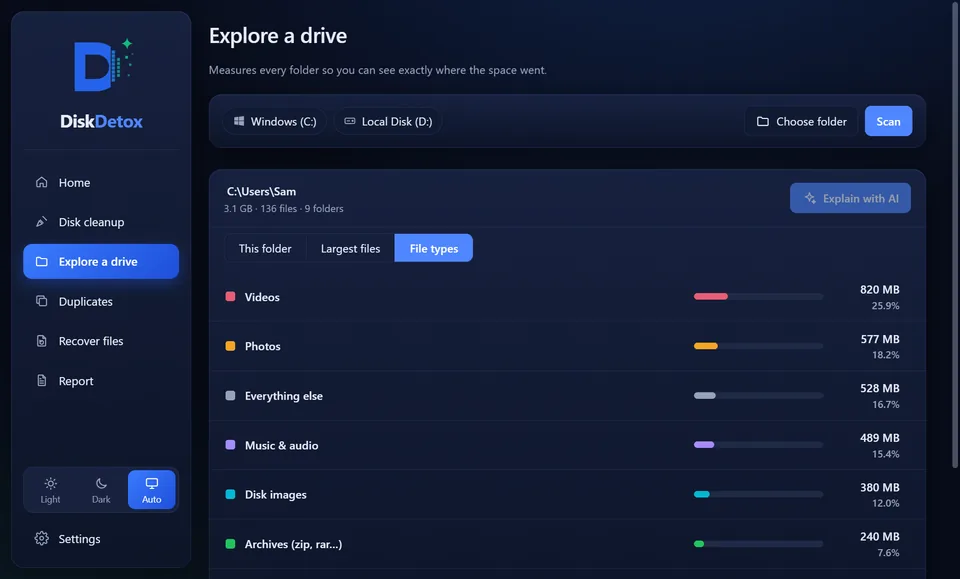
You can open any file or folder in File Explorer or move it to the Recycle Bin. Not sure what a folder is? The optional AI feature explains it, with a risk rating.
Find what's eating your spaceFolder map, largest files and file types for any drive.
Typical space hogs
| Location | What's there | Tip |
|---|---|---|
Downloads |
old installers, ZIP archives, videos | go through it regularly |
Videos and Pictures |
phone videos, screen recordings | move to an external drive or the cloud |
| Game libraries (Steam, Epic, Xbox) | installed games | uninstall unused games |
AppData\Local |
app caches, old versions | clear cache |
C:\Windows.old |
previous Windows installation | delete Windows.old |
C:\hiberfil.sys |
hibernation | delete hiberfil.sys |
| Photos imported twice | duplicate files | find duplicate files |
| ISO and VHDX files | disk images, virtual machines | remove the ones you don't need |
Frequently asked questions
Why doesn't File Explorer show folder sizes?
To work out a folder's size, File Explorer would have to count every file inside it, which would make opening folders very slow. So it only shows folder sizes in Properties.
Why do the folders add up to less than the used space?
Some areas can't be read by normal users, such as system folders, shadow copies of restore points or other users' folders. System files like pagefile.sys and hiberfil.sys also count.
Can I safely delete large files?
Your own files, like videos and downloads, yes, if you no longer need them. Don't delete files in C:\Windows or C:\Program Files by hand; uninstall programs and use Windows' clean-up tools instead.