
What are temporary files?
Temporary files are scratch space: unpacked installers, previews, logs, half-finished downloads and leftovers of crashed programs. They mostly live here:
C:\Users\<Name>\AppData\Local\Temp(your user Temp folder,%temp%for short)C:\Windows\Temp(the system Temp folder)C:\Windows\SoftwareDistribution\Download(downloaded updates)
Almost everything in them can go. Windows locks files that are in use anyway.
Option 1: through Windows Settings (recommended)
- Open Settings → System → Storage.
- Click Temporary files. Windows calculates the sizes.
- Tick categories such as Temporary files, Windows Update Cleanup, Delivery Optimization Files and Thumbnails.
- Click Remove files.
Microsoft explains the categories in Free up drive space in Windows; Disk Cleanup offers the same options.
Careful: the Downloads category deletes your entire Downloads folder, including documents you may still need. Leave it unticked if in doubt.
Option 2: empty the Temp folder by hand
- Press Windows + R, type
%temp%and press Enter. - Select everything with Ctrl + A and press Delete.
- If Windows says “The file is open in another program”, choose Skip and tick the box to do this for all current items.
Then empty the Recycle Bin, or the space isn't free yet. C:\Windows\Temp needs administrator rights.
Option 3: automatically with Storage Sense
Under Settings → System → Storage → Storage Sense you can turn on automatic cleanup of temporary files and choose how often it runs. Ideal if you'd rather not think about it (Microsoft's guide). Other space hogs are covered in free up disk space.
Delete temporary files with DiskDetox
The Windows options cover the Temp folders but not the caches of individual apps. DiskDetox finds both in one pass: temporary files, browser caches (Chrome, Edge), app caches (Teams, Discord, Spotify, Slack, VS Code) and developer caches (npm, pip, Gradle and others).
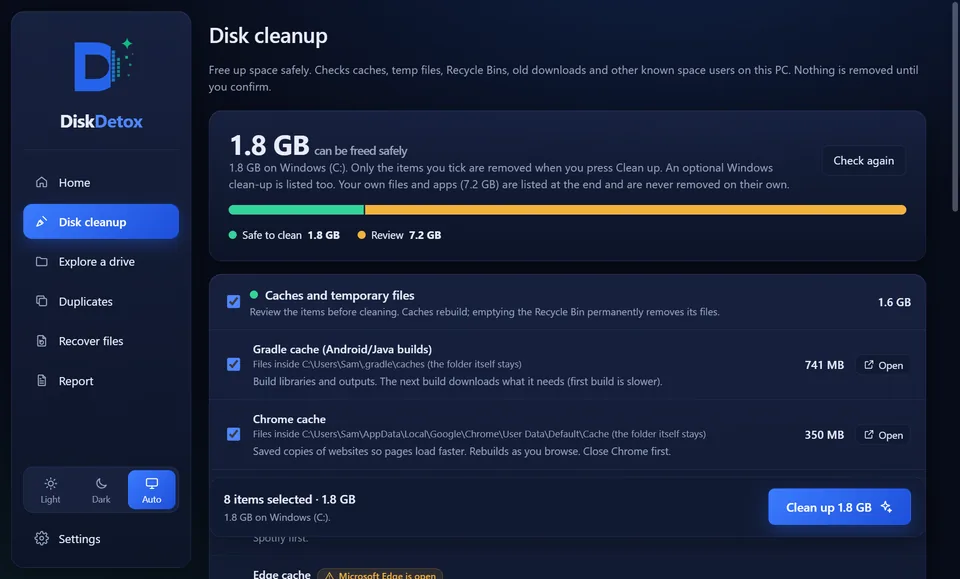
If an app is open, DiskDetox skips its files. After the clean-up it shows the space gained.
Find temp files and cachesTemp folders and app caches in one list, each with its size.
What not to delete
- The
Tempfolder itself: only its contents. C:\Windows\Installer: it looks like a temp folder but holds files Windows needs to repair and uninstall programs. DiskDetox removes only orphaned files there instead of emptying the folder.C:\Windows\Prefetch: deleting it frees almost nothing and slows down the next program start.
Frequently asked questions
Is it safe to delete temporary files?
Yes. Programs recreate them when needed. Files in use are locked by Windows and skipped.
Why are temporary files back right away?
Because running programs and Windows keep creating new ones. The goal isn't an empty folder, it's stopping it from growing to many gigabytes over months.