
What is Windows.old?
C:\Windows.old holds your previous Windows installation. Windows creates it during a feature update or upgrade so you can go back if something goes wrong (Settings → System → Recovery → Go back, see Go back to the previous version of Windows).
That option lasts 10 days by default. Windows usually removes the folder itself afterwards, but sometimes it stays.
Check before deleting
- Is the new Windows working fine? After deleting, there's no way back to the old version.
- Are any personal files missing? Rarely, files stay behind only in the old user folder after an upgrade. Take a quick look in
C:\Windows.old\Users\<Name>for anything you miss.
Why won't Windows.old delete normally?
Its files belong to the TrustedInstaller system account and are protected. Trying to delete the folder in File Explorer ends with “You need permission”. Don't try to take ownership by hand; the ways below are made for this.
Way 1: through Settings
- Open Settings → System → Storage → Temporary files.
- Wait while Windows calculates the list.
- Tick Previous Windows installation(s). Only tick other boxes, especially Downloads, if you mean to.
- Click Remove files.
Microsoft describes this way in Delete your previous version of Windows.
Way 2: with Disk Cleanup
- Press Windows + R, type
cleanmgrand choose drive C. - Click Clean up system files and choose drive C again.
- Tick Previous Windows installation(s) and confirm with OK.
More about Disk Cleanup. Other big system files are covered in delete hiberfil.sys.
Way 3: with DiskDetox
DiskDetox detects an existing Windows.old folder and offers it in the optional Windows clean-up, with its size and an explanation. It's removed through Windows' own clean-up feature, after you confirm and with administrator permission. In the same pass you can also clean up superseded Windows components and update leftovers.
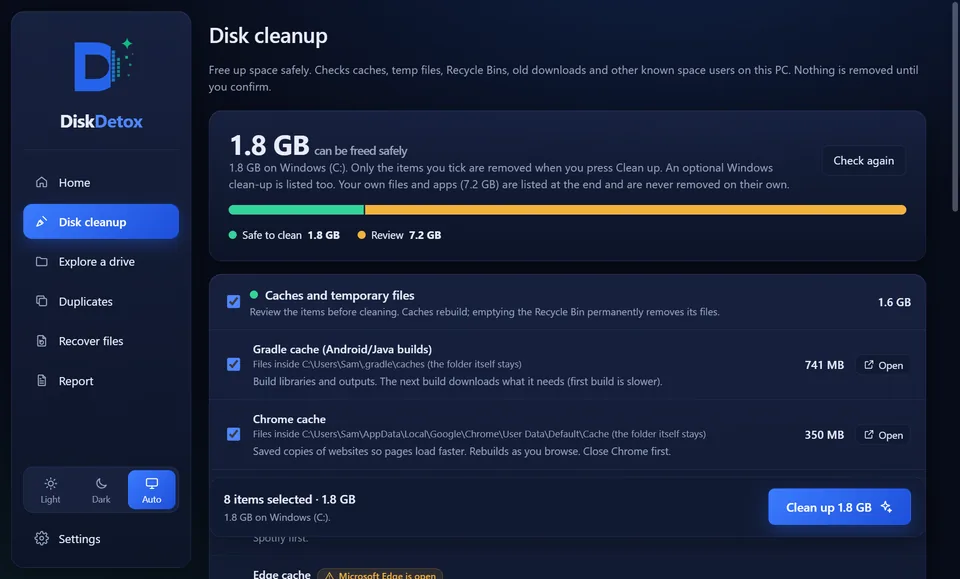
Remove Windows.old with DiskDetoxTogether with old update files, after you confirm.
Frequently asked questions
Is it safe to delete Windows.old?
Yes, if your current Windows works fine and you don't miss any files in the old user folder. You only lose the option to go back to the previous Windows version.
Can I still use Windows.old after 10 days?
Going back to the old version usually isn't possible any more; the option is disabled. You can still copy individual files out by hand as long as the folder exists.
Windows.old comes back after every major update. Is that normal?
Yes. Every feature update makes a new backup of the previous version. You can remove it again each time after a trial period.