
Which cache?
| Cache | Purpose | Clearing helps with |
|---|---|---|
| Temporary files | scratch files of Windows and programs | disk space |
| Thumbnails | previews in File Explorer | wrong or missing previews, space |
| DNS cache | stored website addresses | sites that won't load or resolve wrongly |
| Microsoft Store | Store data | Store errors, stuck downloads |
| App caches (Teams, Discord, Spotify …) | images, files and data of the apps | disk space, display glitches, sign-in issues |
| Browser cache | images and scripts from websites | disk space, outdated pages |
Clearing does no harm; the first use afterwards is just a little slower.
Clear the Windows cache: temporary files and thumbnails
- Open Settings → System → Storage → Temporary files.
- Tick Temporary files and Thumbnails.
- Click Remove files.
In detail: delete temporary files. Disk Cleanup offers the same categories.
Clear the DNS cache
- Right-click Start → Terminal (or Command Prompt).
- Type
ipconfig /flushdnsand press Enter (command reference: ipconfig). - “Successfully flushed the DNS Resolver Cache” confirms it.
Clear the Microsoft Store cache
Press Windows + R, type wsreset.exe and press Enter. A blank window appears briefly, then the Store reopens.
Clear the Teams cache
The Microsoft Teams cache quickly grows to several gigabytes and is a common cause of display and sign-in problems.
New Teams (Windows 11 and current Windows 10)
- Quit Teams completely (right-click the Teams icon in the system tray → Quit).
- Open Settings → Apps → Installed apps → Microsoft Teams → … → Advanced options.
- Click Reset. You'll need to sign in again afterwards.
Microsoft documents both ways in Clear the Teams client cache.
Or delete the contents of this folder: %localappdata%\Packages\MSTeams_8wekyb3d8bbwe\LocalCache\Microsoft\MSTeams
Classic Teams
Quit Teams and delete the contents of %appdata%\Microsoft\Teams.
Chats, files and channels live in the cloud and are not lost when you clear the cache.
Discord, Spotify and browser cache
- For Discord, quit the app, then empty the
Cache,Code CacheandGPUCachefolders in%appdata%\discord. - In Spotify, go to Settings → Storage and click Clear cache. Songs downloaded for offline listening are stored separately.
- In Chrome and Edge, Ctrl + Shift + Delete opens Clear browsing data. Choose only Cached images and files if you want to keep cookies and sign-ins.
All caches at once with DiskDetox
DiskDetox finds these caches in one scan:
- Temporary files of Windows and programs
- Chrome and Edge browser caches
- App caches of Microsoft Teams, Discord, Spotify, Slack and VS Code
- Developer caches: npm, pnpm, Yarn, pip, Gradle, Maven, NuGet and Playwright
If Teams is open, DiskDetox skips the files Teams is using. It clears only the contents of a cache folder; the folder itself stays. More ways to make room are in free up disk space.
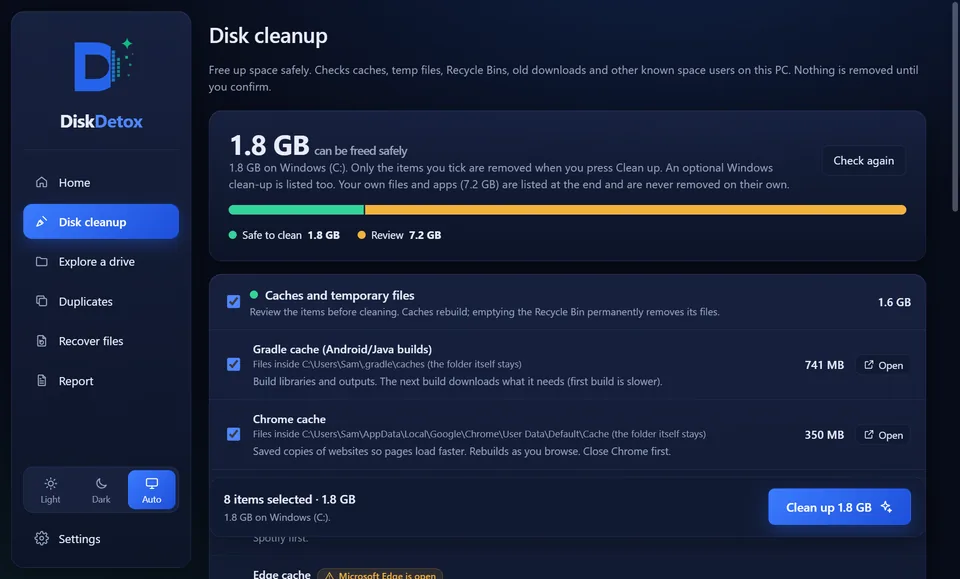
Every cache in one scanTeams, Discord, Spotify, browsers and developer tools.
Frequently asked questions
Is clearing the cache bad?
No. Caches are scratch space and rebuild when needed. In a browser, just make sure you don't also delete cookies and saved passwords by accident.
Will clearing the Teams cache delete chats?
No. Chats, files and meetings are stored in the cloud. After resetting the app you only need to sign in again.