
First: what is using the space?
Before you delete anything, look at the breakdown. Windows shows it under Settings → System → Storage (Microsoft's guide): apps, temporary files, documents, pictures and more. Show more categories also reveals system files.
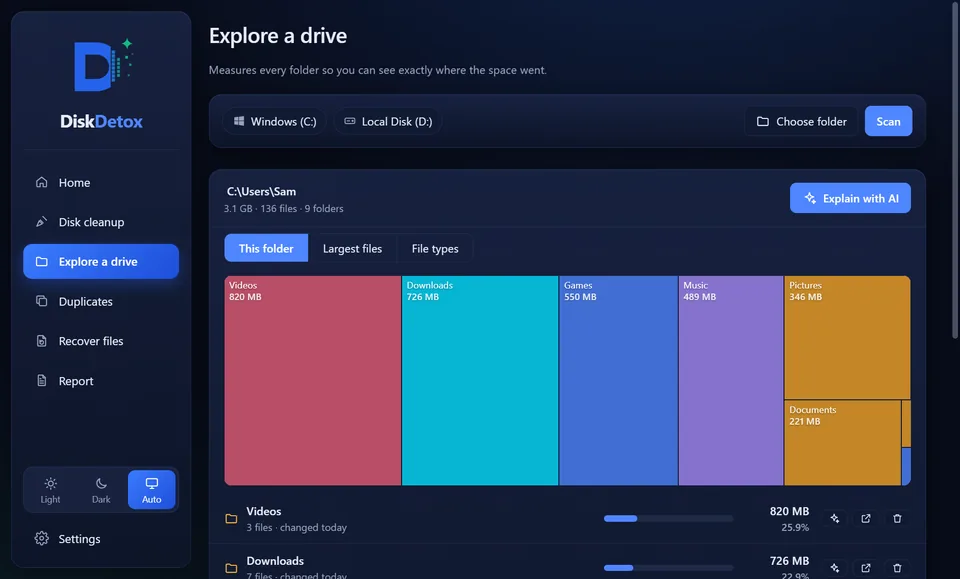
A disk space analyzer that measures every folder goes further. In DiskDetox it's called Explore a drive and shows a map of every folder, the largest files and space by file type. More in find large files.
1. Temporary files and the Recycle Bin
The quickest win: Settings → System → Storage → Temporary files. Windows suggests categories such as Windows Update Cleanup, Delivery Optimization Files, Thumbnails and the Recycle Bin.
Careful with Downloads: that category deletes your whole Downloads folder. Only tick it after you've looked through the folder. Details: delete temporary files.
2. Turn on Storage Sense
Storage Sense cleans up automatically: Settings → System → Storage → Storage Sense. Choose when temporary files are removed and how long files may stay in the Recycle Bin and Downloads folder. It can also switch OneDrive files you haven't opened for a while to online-only.
3. Uninstall apps and games
Under Settings → Apps → Installed apps you can sort the list by size. Games are often near the top. Uninstall what you no longer use right there.
4. Browser and app caches
Chrome, Edge, Teams, Spotify and Discord keep caches that can reach several gigabytes. They rebuild themselves when needed. How to clear them one by one: clear cache on Windows.
5. Big system files
Some space hogs aren't obvious:
| File/folder | Size | What to do |
|---|---|---|
C:\Windows.old |
often many GB | can go after a major update, see delete Windows.old |
C:\hiberfil.sys |
several GB | removed by turning off hibernation, see delete hiberfil.sys |
C:\Windows\WinSxS |
several GB | never delete by hand, only clean: WinSxS cleanup |
C:\pagefile.sys |
several GB | keep it, Windows needs the page file |
| Restore points | a few GB | limit their space under System Protection |
6. Duplicate files and old downloads
Photos imported twice and installers sitting in Downloads three times add up. Find duplicate files shows how to remove duplicates safely.
7. Move files or keep them online-only
- For OneDrive folders, right-click → Free up space. The files stay visible in the cloud but no longer take local space.
- Videos, photo collections and game libraries can move to drive D or an external drive.
Everything in one pass with DiskDetox
The steps above work, but they're spread across many menus. DiskDetox brings them together: the home screen shows how full drive C is and how much can be freed safely; each item in the list comes with a short explanation.
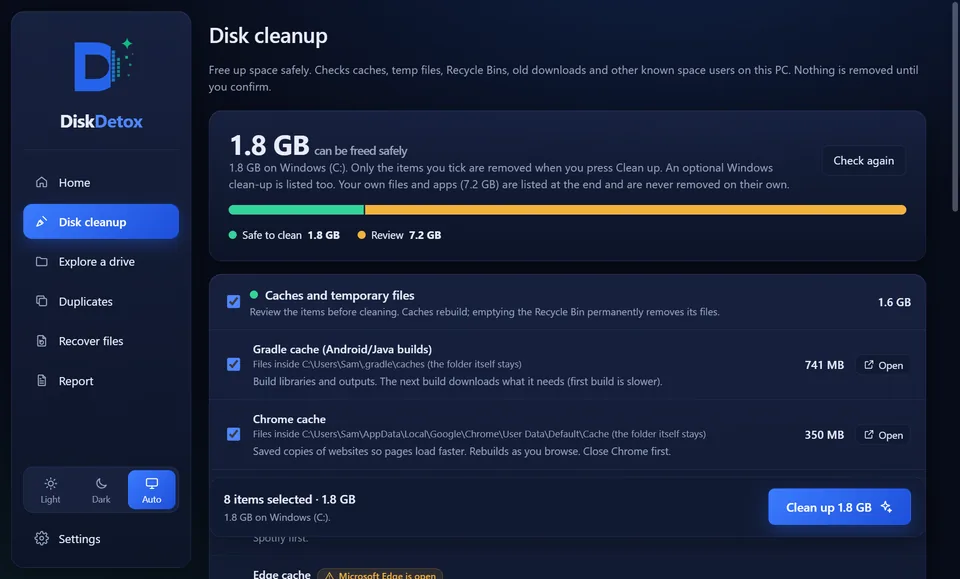
- Temporary files, browser, app and developer caches
- Old app versions and update installers; the current version is always kept
- Optional, with administrator permission: Windows.old, old Windows components, orphaned installer files, hiberfil.sys and OneDrive online-only
- Afterwards you see the space you gained, measured on the drive
Clean up drive C safelyNothing is deleted until you confirm.
What not to delete
- The
C:\Windowsfolder and its subfolders, especiallyWinSxSandSystem32 pagefile.sysand driver folders- Folders under
C:\Program Files: uninstall the app instead - Files in
AppDatayou don't recognise. DiskDetox can explain them with AI if you like.
Frequently asked questions
How much free space should drive C have?
There is no fixed number. Leave enough room for Windows updates: a big feature update temporarily needs many gigabytes while it installs.
Why is drive C full when I haven't saved anything?
Usually caches, update leftovers, Windows.old after an upgrade, hibernation (hiberfil.sys) or restore points grow in the background. A disk space analyzer shows which folder grew.